Theme Management
In the Settings Sidebar -> Display Section, you can select a theme to use for NT Ultra. NT Ultra's default theme makes up it's default colors, default CSS, and any other default setting. Any changes you make to settings can be saved as a new theme. Allowing you to switch between different styles pretty easily.
Creating a Theme
At the end of the Settings Sidebar -> Display Section, you can Expand the section for more theme settings (colors, blur, etc). After making changes to your settings, you can save it all as a new theme. When saving, you'll be prompted to enter a name for the theme, and it will be saved into the list of themes to choose from.
Themes do not include shortcuts or wallpapers
Custom Colors
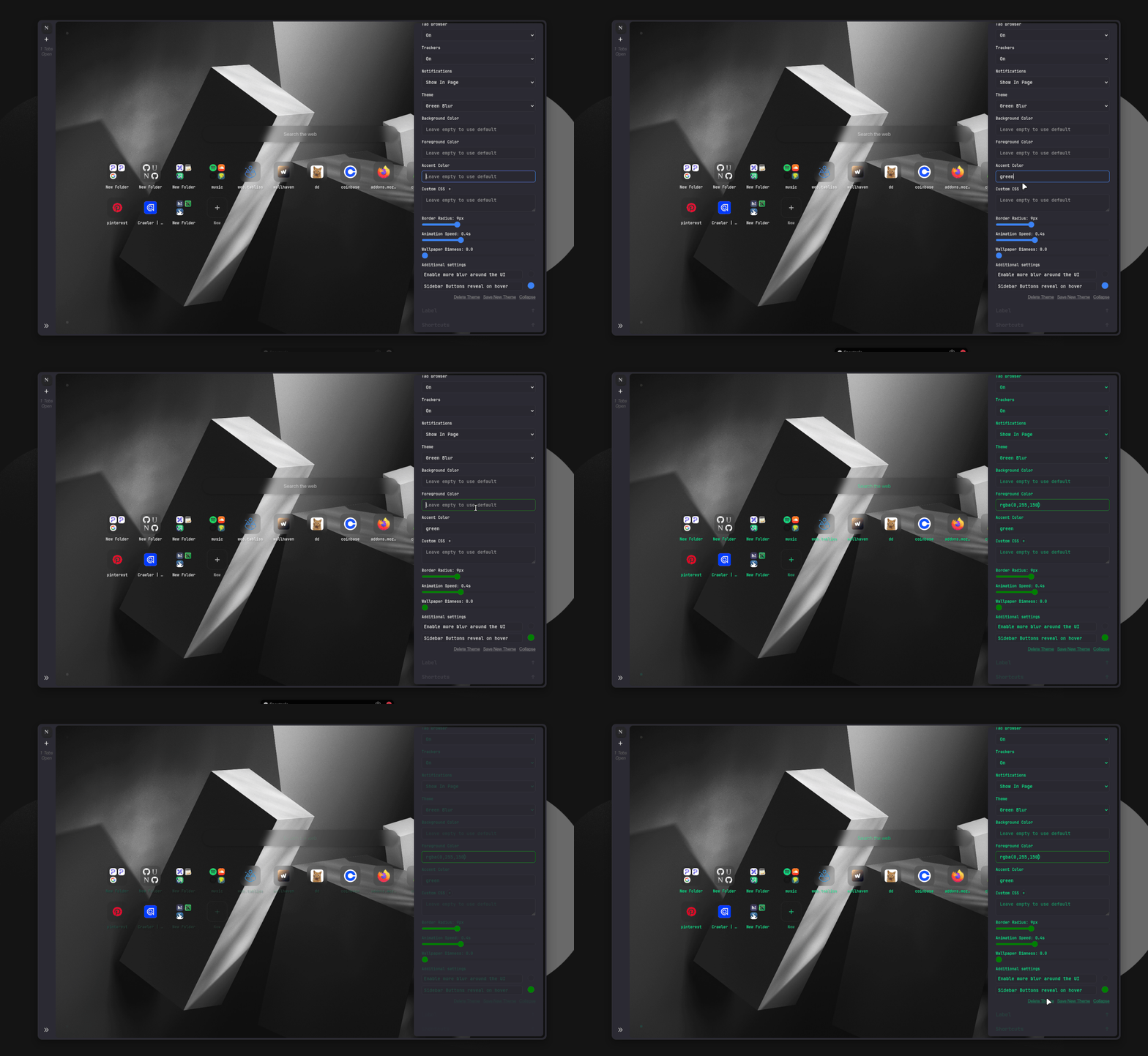
Custom Colors allow you to change the background color, font color, and accent color for elements of the page. Everything in NT Ultra uses a mixture of these three variables to create the overall theme. And changing them is as simply as inputting a color value such as:
green- or
rgba(0,255,150) - or
rgba(0,255,150,0.8)(for transparency)
Custom CSS
Custom CSS let's you style the appearance of NT Ultra at a greater level. Everything you already see on the page is styled intentially through the CSS, with very specific selectors to help target the appropriate things. Get an idea on how easily you can style things by browsing the source, or within your browsers inspection toolbox.
Exporting Themes
When exporting a theme you'll be prompted to enter a description and credit yourself, but this is mostly optional, for if you want to share the theme with others.